ImagesTool PDF
You want to combine several PDFs into one, the file is too large and need to be compressed, or you want to organize tutorial screenshots into PDF. Nothing is complicated, but searching for tools every time is quite time-consuming. ImagesTool's PDF tool station is suitable for collecting and handling these small things. Image
Introduction
You want to combine several PDFs into one, the file is too large and need to be compressed, or you want to organize tutorial screenshots into PDF. Nothing is complicated, but searching for tools every time is quite time-consuming. ImagesTool's PDF tool station is suitable for collecting and handling these small things.
ImagesTool PDF is a set of PDF tools that can be used directly in the browser. It provides more than a dozen PDF document processing related functions such as PDF merging, splitting, compression, deletion, image extraction, page adjustment, and page numbering.
And it is officially claimed to be a 100% free local PDF processing tool, with privacy first!
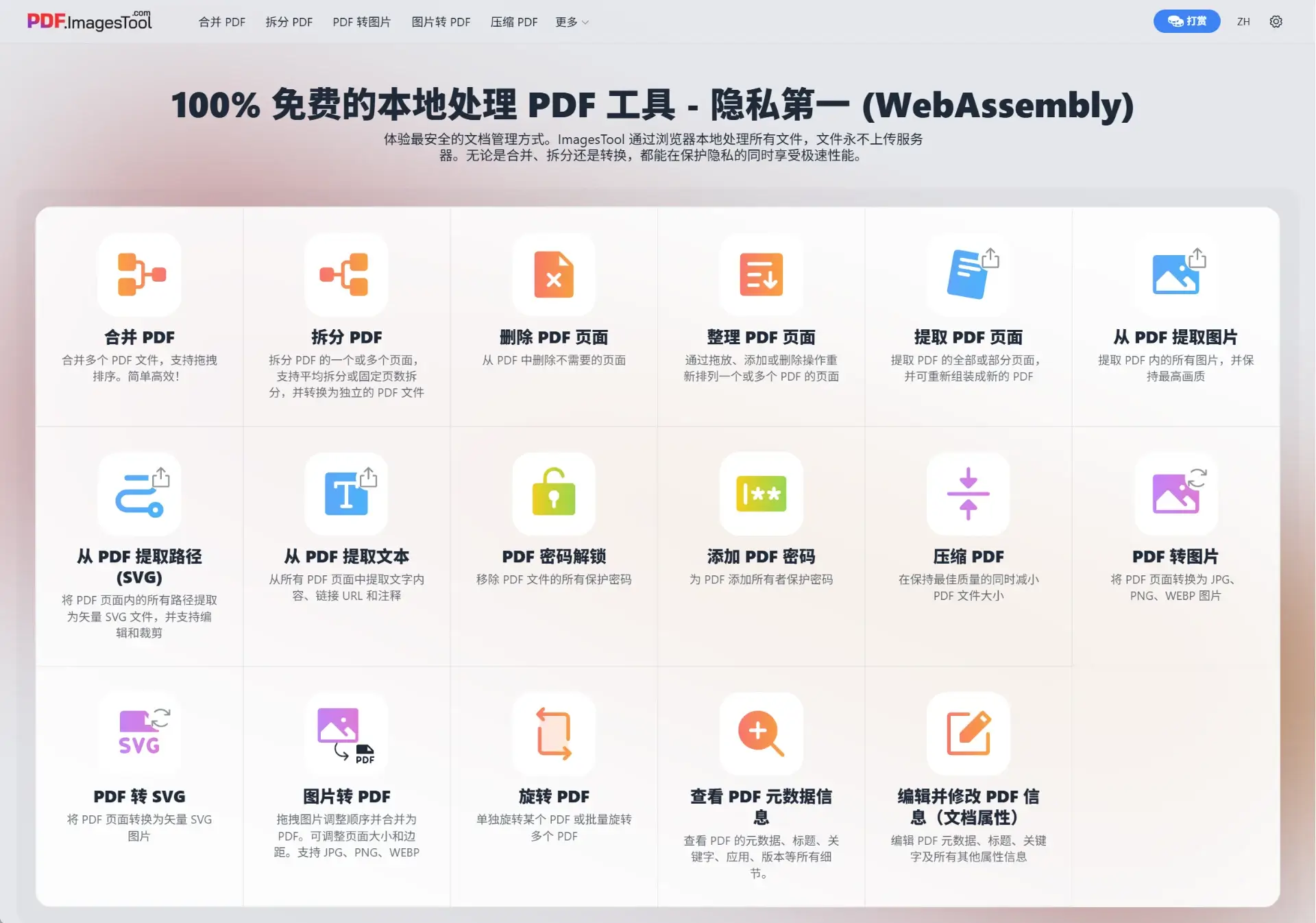
Here is a brief introduction to some of the more commonly used functions:
Compress files, or split by size
When the file exceeds the upload limit, the site provides two processing directions: compress the file, or split it by size.
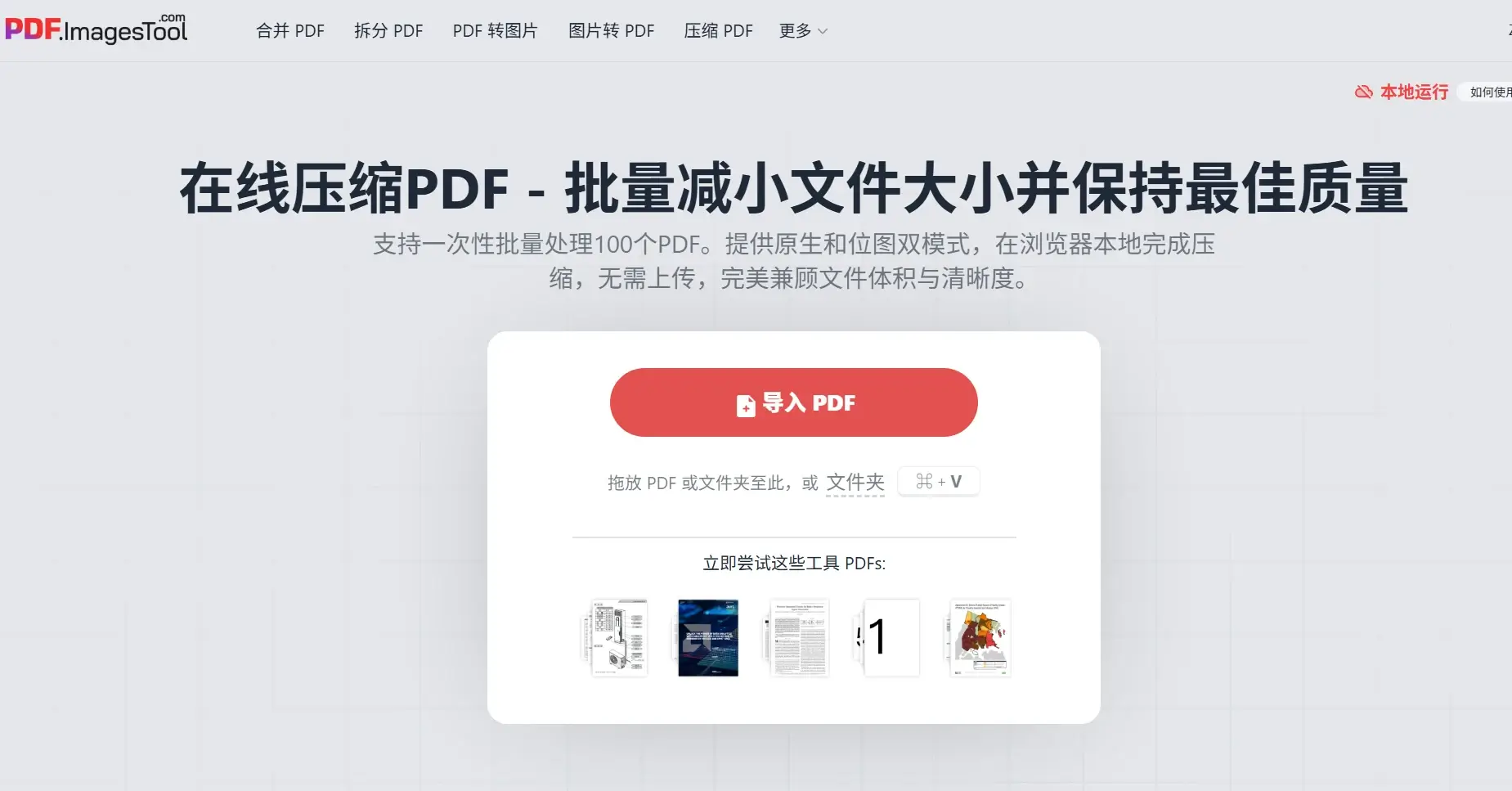
The compression tool offers two modes: "Native PDF" and "Bitmap PDF". The former mainly compresses the images in the document and retains the vector form of the text; the latter converts the page into images and then generates PDF. When you need to retain text search and copy capabilities, it is recommended to try the native mode first.
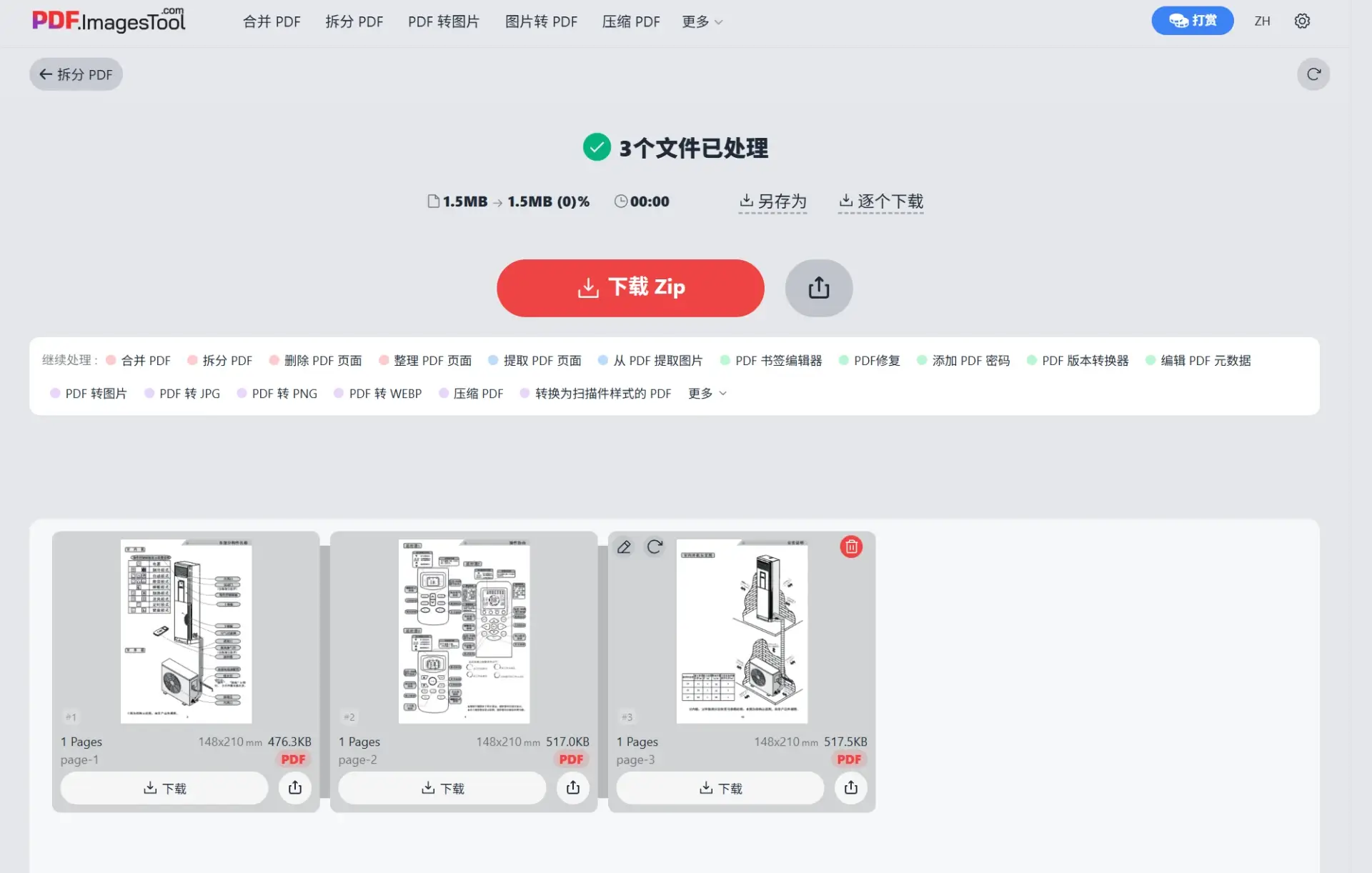
Split by size also has boundaries. After setting it to 2MB, if a page itself exceeds 2MB, it may still be exported as an oversized file separately and needs to be compressed.
Convert images to PDF and vice versa
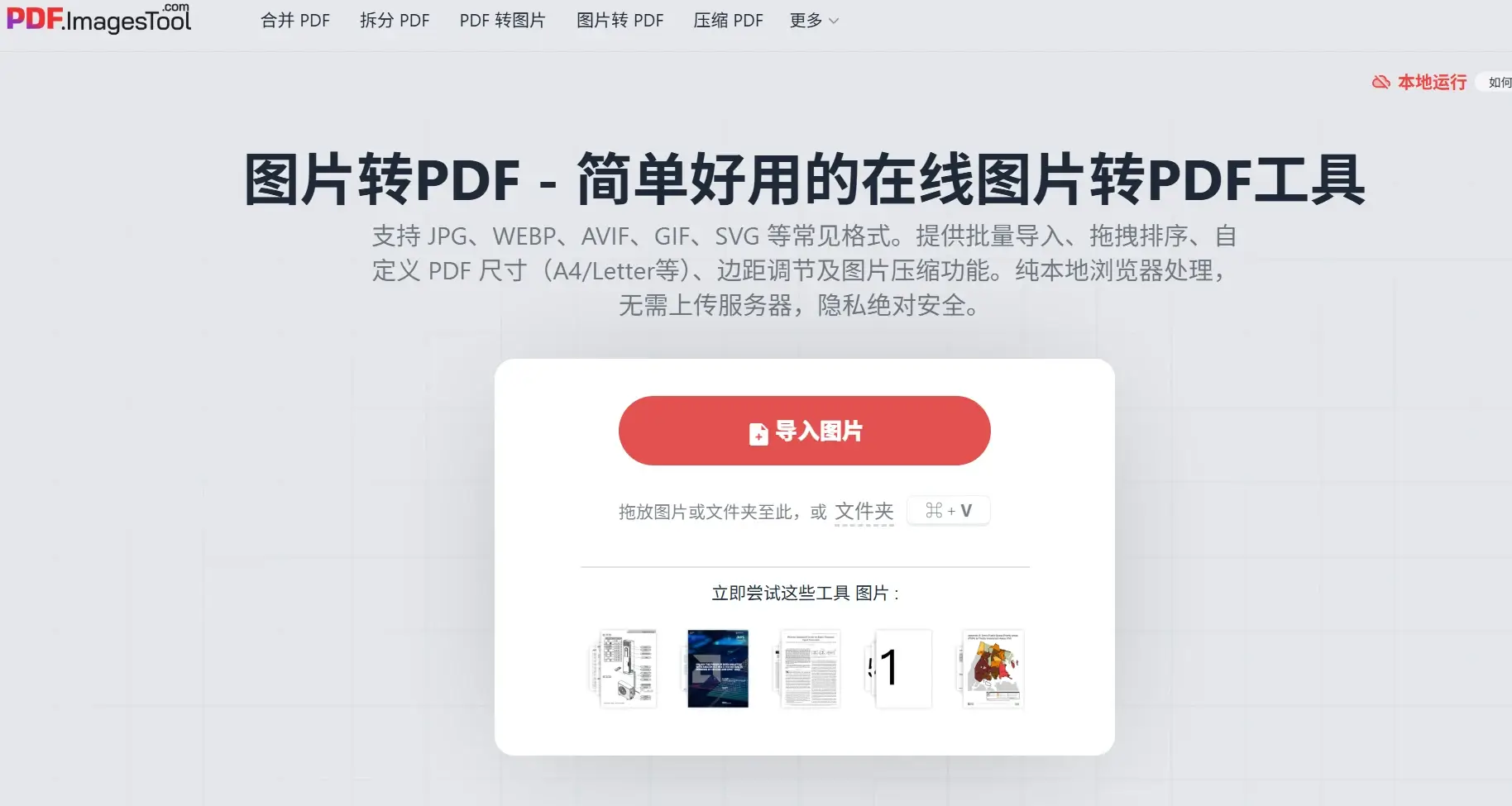
Screenshots and scanned images can be compiled into a PDF. The image to PDF page supports drag-and-drop sorting, and you can also adjust the paper size, margins and image quality. You can also choose to merge the output or generate a separate file for each image.
Extract images from documents
"PDF to Image" and "Extract Image from PDF" are two different purposes.
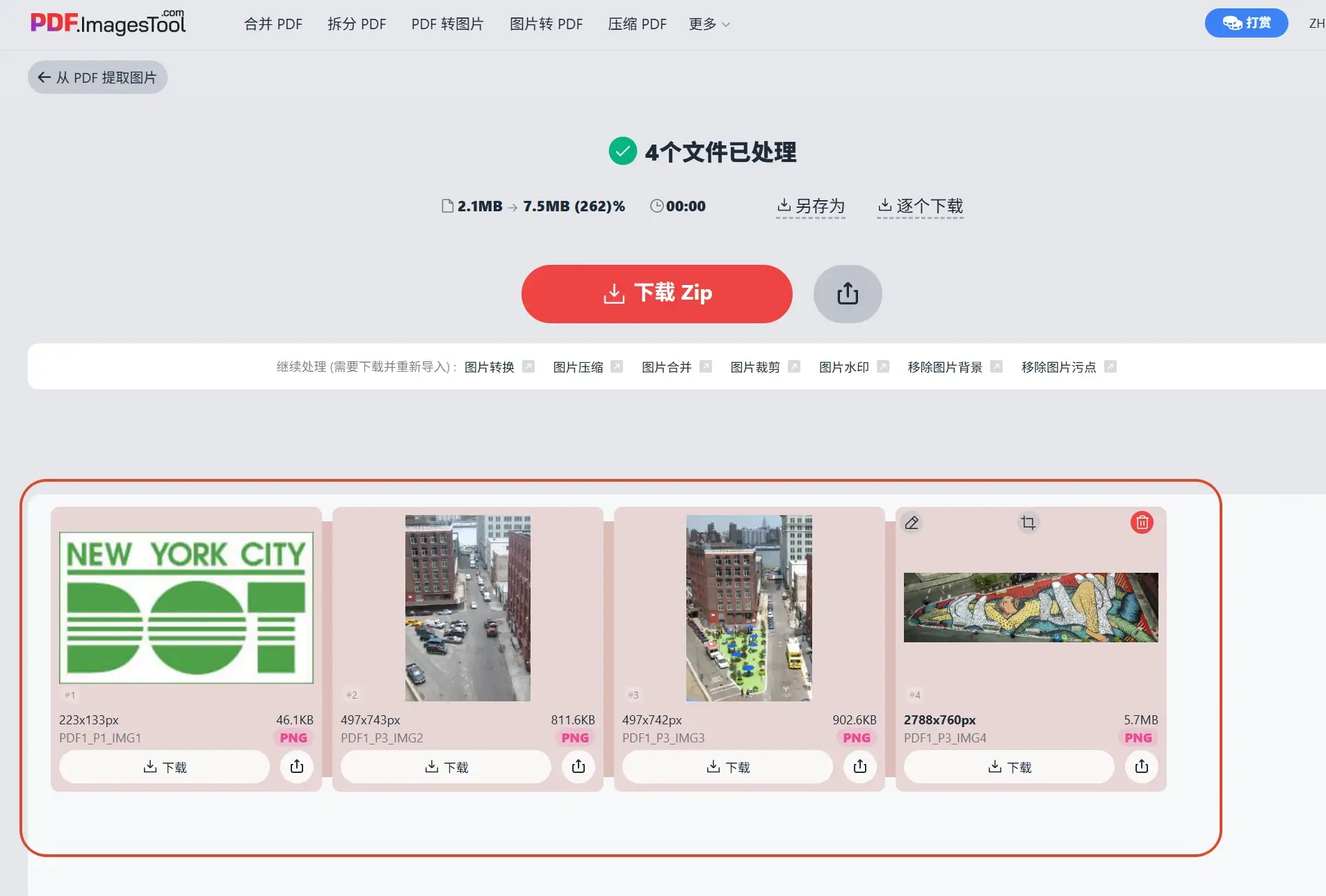
The former outputs the entire page as a picture; the latter extracts the picture objects contained within the document. If you only want to get the photos or illustrations in the information, you can try to extract them first without exporting the entire page of text.
The extraction page provides PNG and JPEG output options, and can also specify the page range and filter duplicate images.
Judging from these functions, ImagesTool PDF is very suitable for putting in browser favorites. Merging files, organizing pages, and converting pictures are all tasks that are occasionally needed and want to be completed as soon as possible. It makes the entrance clearer.